cshttp Tutorial - Day 1: Getting Started with cshttp

Day 1: Getting Started & Your First Multi-Page Website
Welcome! In this tutorial series, you will learn how to build real, interactive web applications using C#.
We will use cshttp — a high-performance, self-sustained, standalone micro web framework for C#. It lets you run web servers and create web apps with almost zero boilerplate or configuration.
- Official GitHub Repository: https://github.com/adriancs2/cshttp
- Releases & Downloads: https://github.com/adriancs2/cshttp/releases
1. Prerequisites (Choose Your Development Environment)
Before starting, choose ONE of the following two development setups:
Environment 1: Visual Studio (Community Edition - Recommended for Beginners)
Visual Studio provides a complete, all-in-one graphical development environment.
- Download: https://visualstudio.microsoft.com/vs/community/
- During Installation:
- In the installer workloads screen, check ".NET desktop development" or "ASP.NET and web development".
- In the Individual components tab, make sure .NET Framework 4.8 development tools and the latest .NET SDK (e.g., .NET 8 or newer) are selected.
Environment 2: Visual Studio Code + .NET SDK (Lightweight & Cross-Platform)
If you prefer a lightweight code editor:
- Install .NET SDK:
- Download & install the .NET SDK (.NET 8 or newer): https://dotnet.microsoft.com/download
- Install VS Code:
- Download: https://code.visualstudio.com/
- Install Extension:
- Open VS Code, go to the Extensions tab (
Ctrl + Shift + X), search for and install the official "C# Dev Kit" extension.
- Open VS Code, go to the Extensions tab (
2. Getting cshttp into Your Project (3 Methods)
There are three ways to get cshttp into your project, depending on your preference:
Method 1: Download the Starter Pack (Easiest & Recommended)
Download the pre-configured cshttp-starter-pack.zip from the GitHub Releases page.
The Starter Pack is pre-configured to support both modern .NET (8.0, 9.0, 10.0+) and classic .NET Framework 4.8 automatically.
When you unzip the folder, you will see:
starter-pack/
├── lib/
│   ├── net8.0/               <-- Pre-compiled DLL for modern .NET
│   │   └── cshttp.dll
│   └── net48/                <-- Pre-compiled DLL for .NET Framework 4.8
│       └── cshttp.dll
├── StarterApp.csproj         <-- Pre-configured project (auto-detects runtime)
├── Program.cs                <-- Your application code
└── README.md
Everything is pre-wired. Open the folder, press run, and it works immediately.
Method 2: Manually Include the Pre-Compiled DLL
If you are creating a new project in Visual Studio or adding to an existing project:
- Create a Console App:
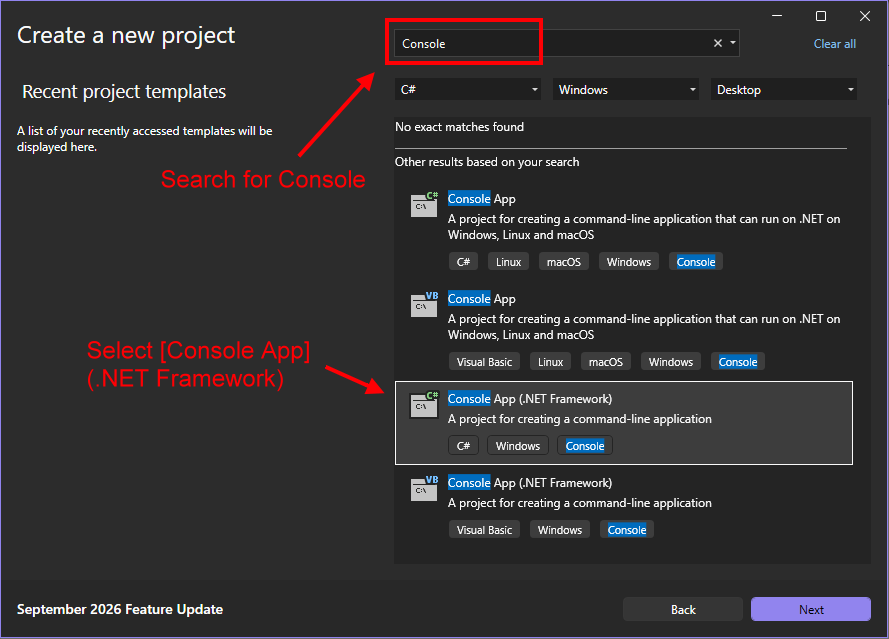
- In Visual Studio, choose Create a new project. Search for
Consoleand select Console App (.NET Framework) (or modern .NET Console App).
- In Visual Studio, choose Create a new project. Search for
- Configure Your Project:
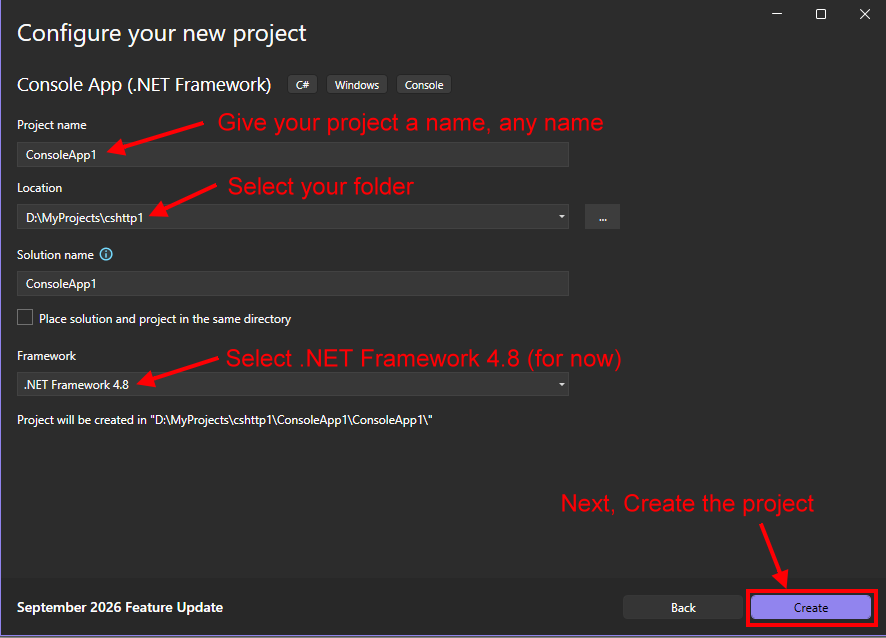
- Give your project a name, choose its directory, select .NET Framework 4.8 (or modern .NET), and click Create.
- Grab the compiled
cshttp.dll:- Download it directly from GitHub Releases.
- OR Compile from source: Clone the repo from https://github.com/adriancs2/cshttp and build the solution in
Releasemode.
- Add Reference in Visual Studio:
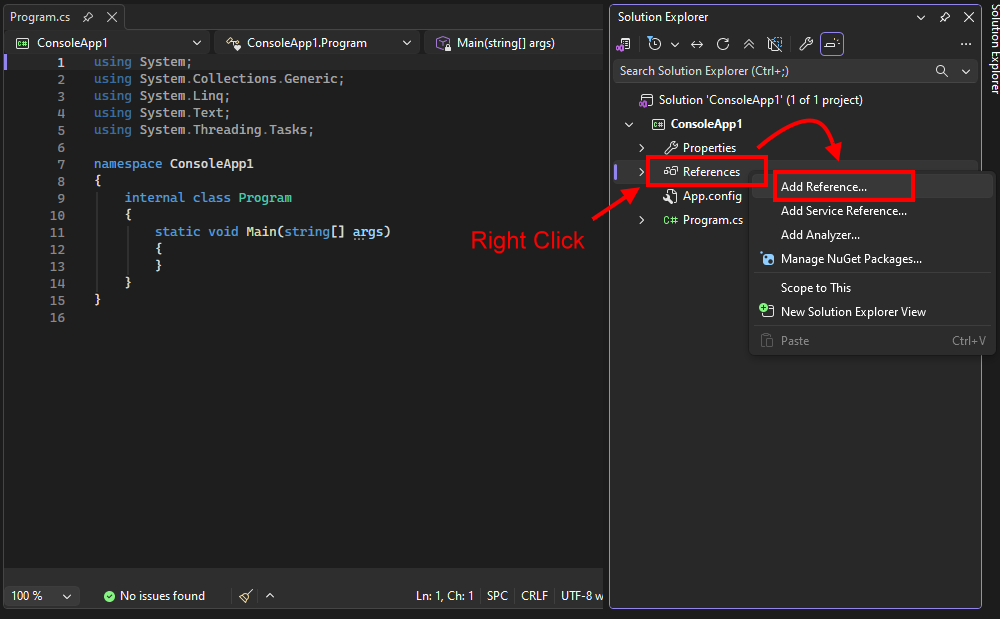
- In Solution Explorer, right-click References and select Add Reference...:
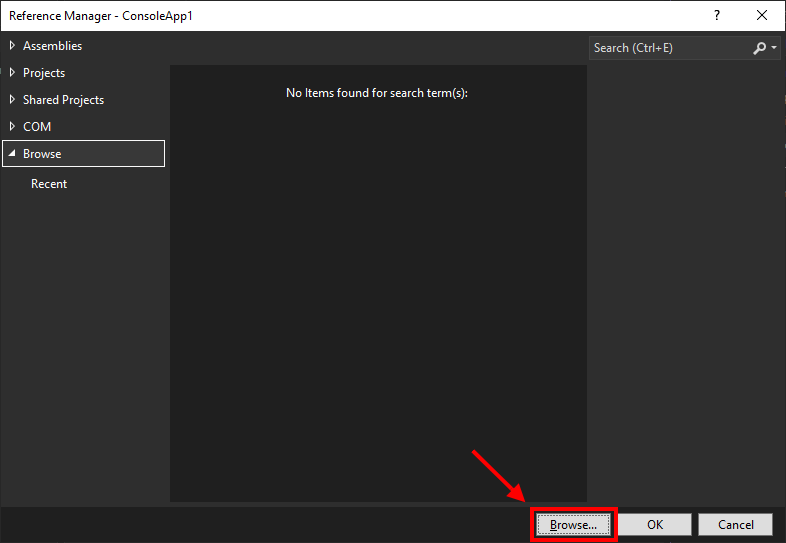
- Click the Browse... button at the bottom:
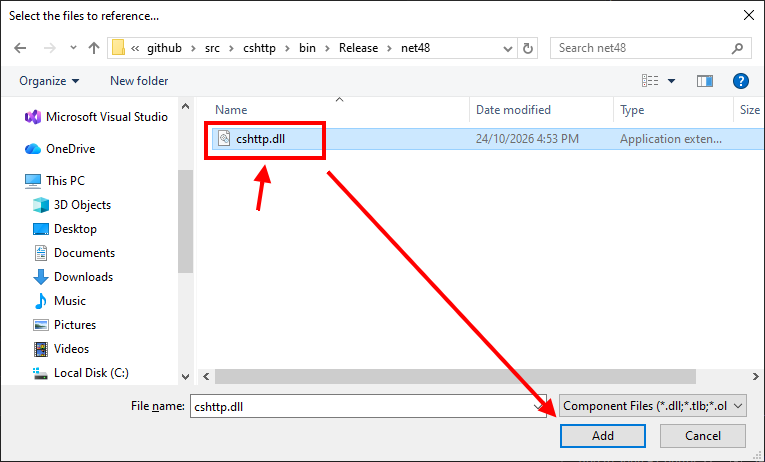
- Navigate to
cshttp.dll, select it, and click Add:
- Make sure
cshttp.dllis checked, then click OK:
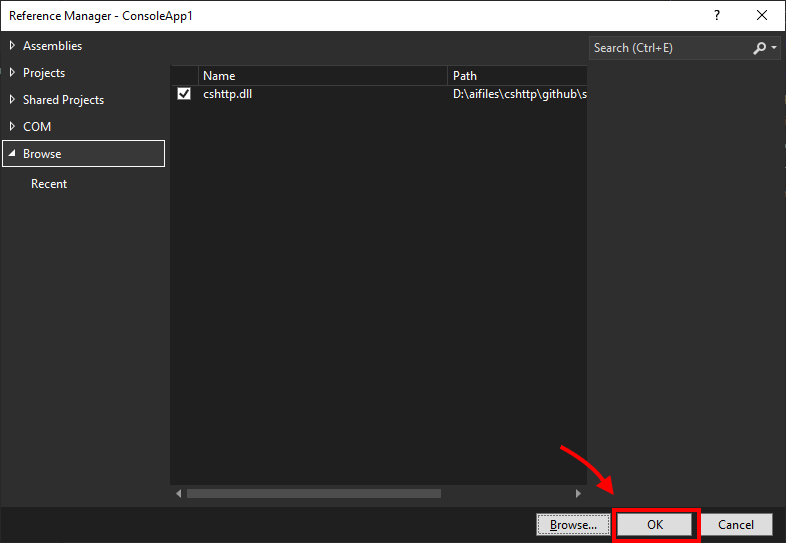
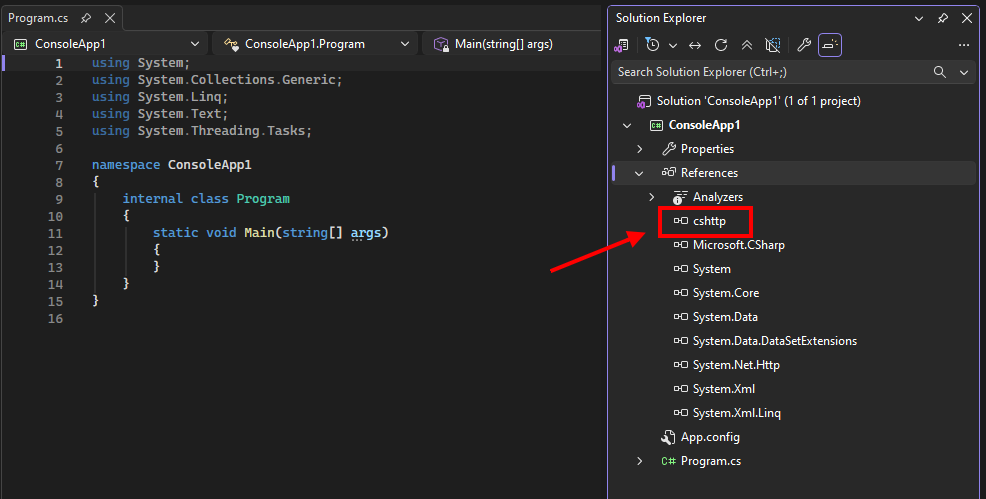
- You will now see
cshttplisted under References in Solution Explorer:
(Note: For modern SDK-style .csproj projects, you can alternatively copy cshttp.dll into a lib folder and add <Reference Include="cshttp"><HintPath>lib\cshttp.dll</HintPath></Reference> inside an <ItemGroup>.)
Method 3: Directly Include All Source Code
If you want complete control and want to step through cshttp's source code line by line while debugging:
- Clone or download the repository: https://github.com/adriancs2/cshttp.
- Either add the
cshttpproject (src\cshttp\cshttp.csproj) to your Solution and add a project reference, or copy theCore/,Web/, andServer/source folders directly into your project.
3. Starting from Program.cs
Double-click Program.cs in Visual Studio via the Solution Explorer.
Here is what Visual Studio generates by default for a new console application:
using System;
using System.Collections.Generic;
using System.Linq;
using System.Text;
using System.Threading.Tasks;

namespace ConsoleApp1
{
    internal class Program
    {
        static void Main(string[] args)
        {

        }
    }
}
Tip for beginners: You can safely ignore
string[] args— it is used for command-line arguments when running an app from a terminal. In C#, bothstatic void Main()andstatic void Main(string[] args)are valid entry points, so you can leave it as-is!
Now, let's initialize our web application!
- At the very top of the file, add
using cshttp;to import the cshttp web framework. - Inside
Main(), callWebApp.Run(8080, OnRequest);. - Create the
OnRequest()method right belowMain().
using System;
using System.Collections.Generic;
using System.Linq;
using System.Text;
using System.Threading.Tasks;
using cshttp; // <-- 1. Import cshttp web framework

namespace ConsoleApp1
{
    internal class Program
    {
        static void Main(string[] args)
        {
            // 2. Start the web application on port 8080
            WebApp.Run(8080, OnRequest);
        }

        // 3. Define the request handler
        static void OnRequest()
        {

        }
    }
}
Understanding WebApp.Run(8080, OnRequest);
Let's look closely at the two parameters inside this line:
WebApp.Run(8080, OnRequest);8080(Port Number):8080is the port number where your website will be listening. Once the program is running, you can open your web browser and visit your website at this address:http://localhost:8080OnRequest(Request Handler Method):The second parameter,
OnRequest, routes every incoming HTTP request to our dedicatedOnRequest()method. Behind the scenes,WebAppruns in a continuous loop, keeping your web application alive and always ready to callOnRequest()whenever someone visits your site.
4. Returning Your First Web Page ("Hello World")
Right now, OnRequest() is empty, so the server doesn't send anything back to the browser yet.
Next, what we want to do is return website content (HTML) to the user using Response.Write(html);:
using System;
using cshttp;

namespace ConsoleApp1
{
    internal class Program
    {
        static void Main(string[] args)
        {
            // Begin the web application
            WebApp.Run(8080, OnRequest);
        }

        static void OnRequest()
        {
            string html = @"
<html>
    <head>
        <title>Hello World</title>
    </head>
    <body>
        <h1>Welcome cshttp!</h1>
        <p>Hello World!</p>
    </body>
</html>
";
            Response.Write(html);
        }
    }
}
Run and See It!
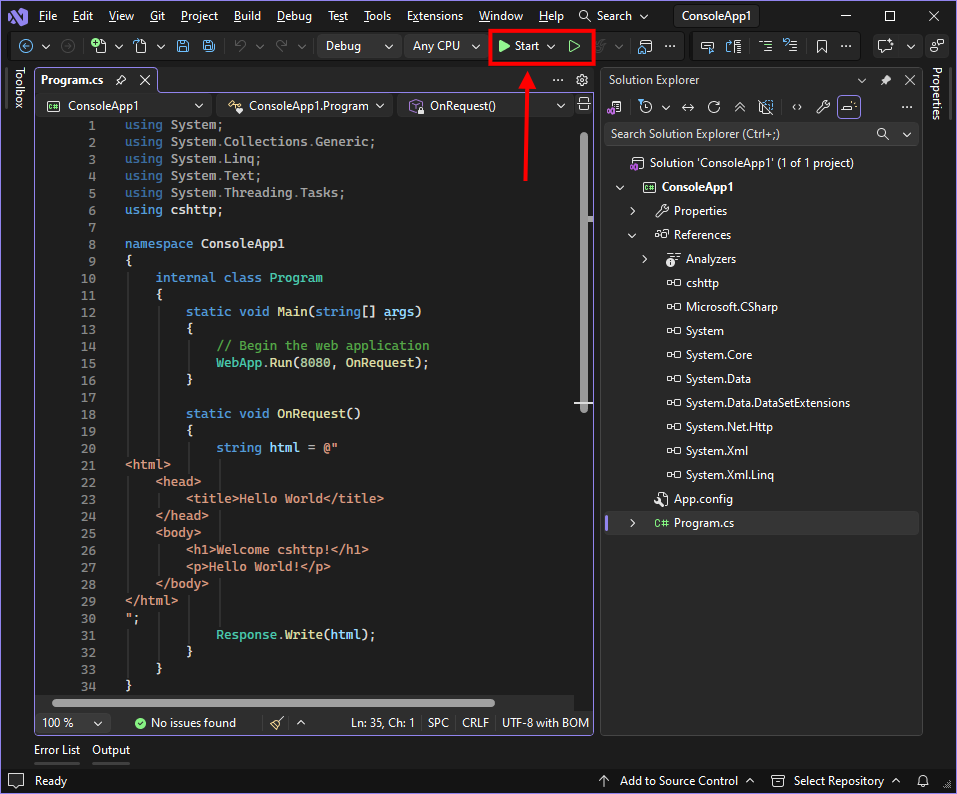
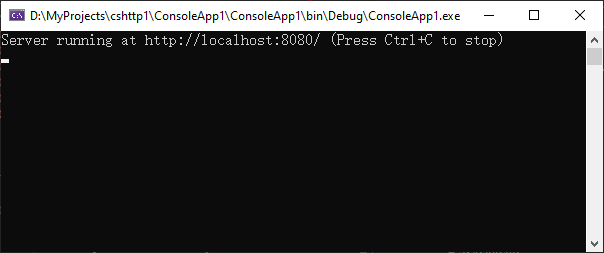
- Press Start / Play in Visual Studio (or run
dotnet runin your terminal).
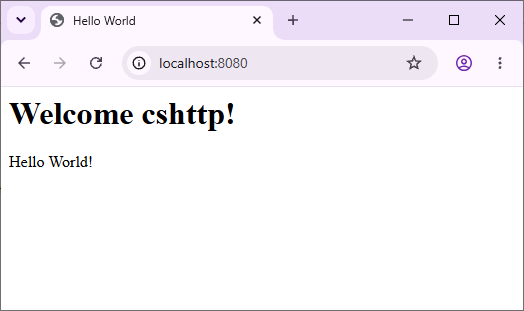
- Open your browser and visit
http://localhost:8080. - You will see your very first web page: "Welcome cshttp! Hello World!"
(To stop the server at any time so you can edit code, click the Stop button in Visual Studio or press Ctrl + C in your terminal.)
5. Understanding URL Paths
In a real website, we normally have different addresses for different pages, such as:
http://www.mywebsite.com/
http://www.mywebsite.com/home
http://www.mywebsite.com/about
http://www.mywebsite.com/contact
Notice the ending part after the domain name. Above, we have 4 distinct pages:
| Page | Path |
|---|---|
| Root | / |
| Home page | /home |
| About page | /about |
| Contact page | /contact |
In the web development world, this ending part is called the path.
When we are developing websites locally on our own computer, we don't have a custom domain name bound to it yet (such as www.mywebsite.com). Instead, the default domain for your own machine is always localhost.
Thus, on your browser and our WebApp server, those paths look like this:
http://localhost:8080/
http://localhost:8080/home
http://localhost:8080/about
http://localhost:8080/contact
6. Identifying the Path in Code
Now, let's go back to our code! We will expand OnRequest() to identify which path the user is currently browsing.
We can read the path using Request.Path.ToLower(), and use a standard C# switch statement to check it:
using System;
using cshttp;

namespace ConsoleApp1
{
    internal class Program
    {
        static void Main(string[] args)
        {
            WebApp.Run(8080, OnRequest);
        }

        static void OnRequest()
        {
            string path = Request.Path.ToLower();
            string html = "";

            switch (path)
            {
                case "/":
                case "/home":
                    break;
                default:
                    break;
            }
        }
    }
}
This is a standard, basic switch statement in C# to branch our logic based on path.
7. Returning Content for Each Path (and 404 Not Found)
Next, let's return the specific HTML content that we want to show the user for each path:
using System;
using cshttp;

namespace ConsoleApp1
{
    internal class Program
    {
        static void Main(string[] args)
        {
            WebApp.Run(8080, OnRequest);
        }

        static void OnRequest()
        {
            string path = Request.Path.ToLower();
            string html = "";

            switch (path)
            {
                case "/":
                case "/home":
                    html = @"
    <html>
        <head>
            <title>Hello World</title>
        </head>
        <body>
            <h1>Welcome cshttp!</h1>
            <p>Hello World!</p>
        </body>
    </html>
    ";
                    break;
                default:
                    Response.StatusCode = 404;
                    html = @"
    <html>
        <head>
            <title>Not Found</title>
        </head>
        <body>
            <h1>404 Not Found</h1>
            <p>The page that you are looking for does not exist.</p>
        </body>
    </html>
                ";
                    break;
            }

            Response.Write(html);
        }
    }
}
The code above handles the following paths:
http://localhost:8080/
http://localhost:8080/home
>> Shows the Home page ("Welcome cshttp!")
Any other path that is not defined in our switch statement, such as:
http://localhost:8080/about
http://localhost:8080/contact
http://localhost:8080/any-other-pages
will jump to the default: block, set Response.StatusCode = 404, and return the "404 Not Found" page!
8. Adding Support for /about and /contact
How do we add support for another path—let's say /about?
You simply add another case "/about": block inside the switch statement:
            case "/about":
                html = @"
    <html>
        <head>
            <title>About Us</title>
        </head>
        <body>
            <h1>About Us</h1>
            <p>It's Me!</p>
        </body>
    </html>
    ";
                break;
And we can do the exact same thing for /contact!
Here is what the complete code looks like when we put /, /home, /about, /contact, and the 404 page together:
using System;
using cshttp;

namespace ConsoleApp1
{
    internal class Program
    {
        static void Main(string[] args)
        {
            WebApp.Run(8080, OnRequest);
        }

        static void OnRequest()
        {
            string path = Request.Path.ToLower();
            string html = "";

            switch (path)
            {
                case "/":
                case "/home":
                    html = @"
    <html>
        <head>
            <title>Hello World</title>
        </head>
        <body>
            <h1>Welcome cshttp!</h1>
            <p>Hello World!</p>
        </body>
    </html>
    ";
                    break;
                case "/about":
                    html = @"
    <html>
        <head>
            <title>About Us</title>
        </head>
        <body>
            <h1>About Us</h1>
            <p>It's Me!</p>
        </body>
    </html>
    ";
                    break;
                case "/contact":
                    html = @"
    <html>
        <head>
            <title>Contact</title>
        </head>
        <body>
            <h1>Contact</h1>
            <p>Email us at [email protected]</p>
        </body>
    </html>
    ";
                    break;
                default:
                    Response.StatusCode = 404;
                    html = @"
    <html>
        <head>
            <title>Not Found</title>
        </head>
        <body>
            <h1>404 Not Found</h1>
            <p>The page that you are looking for does not exist.</p>
        </body>
    </html>
                ";
                    break;
            }

            Response.Write(html);
        }
    }
}
Why Start with .NET Framework Instead of Modern .NET Core?
You might wonder why this tutorial series starts with a .NET Framework project template rather than a modern .NET Core / .NET 8+ template.
In modern .NET Core templates, Microsoft introduced two "convenience" features enabled by default:
- Top-Level Statements: The
namespace,class Program, andstatic void Main(string[] args)are completely stripped away behind the scenes. - Implicit Usings: Standard namespaces like
System,System.Collections.Generic, andSystem.IOare invisibly imported in background auto-generated files.
While convenient for experienced developers writing quick scripts, this often disorients beginners learning C# and web development:
- Understanding Code Architecture: Without the visible structure of
namespace -> class -> method, learners cannot see where helper methods belong, how variable scope works, or how C# organizes real-world applications. - Explicit is Better than Magic: Explicit
usingstatements and defined class boundaries provide a clear, unambiguous blueprint of what code is running and where each feature comes from. - Write Once, Run Anywhere: The code you write here is 100% universal C#. Once you master the structured foundation, your
cshttpweb applications will run identically whether compiled on .NET Framework 4.8 or deployed on modern .NET 8 / 10+!