cshttp Tutorial - Day 9: Static Files (`/assets/` Folder, CSS, Images & Scripts)

Day 9: Static Files (/assets/ Folder, CSS, Images & Scripts)
Up to Day 8, every response our server sent back to the browser was an HTML web page generated inside Program.cs.
However, when your browser opens a real website, a web page needs more than just HTML:
- A CSS stylesheet (
style.css) for colors, fonts, and layout - Pictures and icons (
logo.svg,.png,.jpg) - JavaScript files (
app.js) for browser interactivity
In real web development, we store these files in a dedicated folder called assets, configure Visual Studio to copy that folder to our output bin directory, and serve any file inside /assets/ using Response.TransmitFile(...).
Today, we will:
- Start with a clean, focused
Program.cs(keeping only/and our404handler). - Create an
assetsfolder in our project withstyle.css,logo.svg, andapp.js. - Understand how a 2-in-1
.exeweb server works and why static files must live alongside the.exeinsidebin\Debug\(orbin\Release\). - Configure Visual Studio to auto-copy
assetstobin(using either the easy Copy if newer property or the.csprojwildcard rule). - Serve all
/assets/files in one clean block usingif (path.StartsWith("/assets/"))andResponse.TransmitFile(filePath). - Link
/assets/style.css,/assets/logo.svg, and/assets/app.jsinsideRenderPage()and watch how one web page triggers multiple HTTP requests!
1. Starting with a Clean Slate
In Days 3 through 8, our Program.cs grew as we added /greet, /about, /contact, and /guestbook.
To keep our code crystal clear and easy to follow today, let's start Day 9 with a fresh, minimal Program.cs that keeps only our Home page (/), our 404 Not Found handler, and RenderPage():
using System;
using cshttp;

namespace ConsoleApp1
{
    internal class Program
    {
        static void Main(string[] args)
        {
            WebApp.Run(8080, OnRequest);
        }

        static void OnRequest()
        {
            string path = Request.Path.ToLower();

            switch (path)
            {
                case "/":
                case "/home":
                    HandleHome();
                    break;
                default:
                    HandleNotFound();
                    break;
            }
        }

        static void RenderPage(string title, string bodyContent)
        {
            string html = $@"
<html>
    <head>
        <title>{title}</title>
    </head>
    <body>
        <nav>
            <a href='/'>Home</a>
        </nav>
        <hr />

        {bodyContent}

        <hr />
        <footer>
            <small>Server Time: {DateTime.Now:yyyy-MM-dd HH:mm:ss}</small>
        </footer>
    </body>
</html>";

            Response.Write(html);
        }

        static void HandleHome()
        {
            string content = @"
                <h1>Welcome Home</h1>
                <p>Today we are learning how to serve CSS, pictures, and JavaScript from an <b>/assets/</b> folder!</p>";

            RenderPage("Home", content);
        }

        static void HandleNotFound()
        {
            Response.StatusCode = 404;
            string content = @"
                <h1>404 Not Found</h1>
                <p>The page that you are looking for does not exist.</p>";

            RenderPage("404 Not Found", content);
        }
    }
}
2. Creating the assets Folder and Static Files
Inside Visual Studio's Solution Explorer, right-click your project (e.g., ConsoleApp1) → Add → New Folder, and name the folder assets.
Your project folder structure will look like this:
ConsoleApp1/
├── Program.cs
└── assets/
    ├── style.css
    ├── logo.svg
    └── app.js
Why do we put all of our CSS, JavaScript, and images inside a single assets folder instead of scattering them next to Program.cs?
- Organization: Your C# code stays cleanly separated from your website's styling, scripts, and images.
- Easy & Safe Routing: As you will see in Section 4, having every static file start with
/assets/lets our C# code recognize and serve them with a singleif (path.StartsWith("/assets/"))check—without accidentally exposing private files in your root folder (likeguestbook.txtorConsoleApp1.exe)!
Let's create three files inside the assets folder:
File 1: assets/style.css
Right-click the assets folder → Add → New Item... (or Style Sheet), name it style.css, and paste the following CSS rules:
body {
    font-family: Arial, sans-serif;
    max-width: 700px;
    margin: 20px auto;
    background: #fdfdfd;
    color: #333;
}
nav {
    display: flex;
    align-items: center;
    gap: 10px;
}
nav a {
    color: #2b6cb0;
    text-decoration: none;
}
nav a:hover {
    text-decoration: underline;
}
h1 {
    color: #2c5282;
}
footer {
    color: gray;
}
(Notice how Visual Studio gives you syntax highlighting and auto-complete when CSS is in its own .css file!)
File 2: assets/logo.svg
Right-click the assets folder → Add → New Item... → choose Text File (or XML File), name it logo.svg, and paste this simple SVG vector image that draws a blue circle with white "C#" text:
<svg xmlns="http://www.w3.org/2000/svg" width="40" height="40" viewBox="0 0 40 40">
    <circle cx="20" cy="20" r="18" fill="#2c5282" />
    <text x="20" y="26" font-size="16" font-family="Arial" fill="white" text-anchor="middle">C#</text>
</svg>
(Tip: You can also drop any real .png or .jpg picture into the assets folder!)
File 3: assets/app.js
Right-click the assets folder → Add → New Item... → choose JavaScript File (or Text File), name it app.js, and add a simple line of JavaScript:
console.log("Hello from /assets/app.js!");3. How Your Web Application Works
Before we write our C# code to serve /assets/, let's take a step back and understand how our web application actually runs.
When you press Start (or Build) in Visual Studio, the C# compiler compiles all of your C# code (Program.cs) into a single executable program—an .exe file (for example, MyWeb.exe or ConsoleApp1.exe).
How Your .exe Works: The 2-in-1 Web Server & The bin Folder
This compiled .exe file is 2-in-1:
- It is your web application logic (your C# methods like
OnRequest()andHandleHome()). - It is also the web server itself!
That is why cshttp is called a zero-dependency standalone framework. Your compiled .exe runs completely on its own—it does not need IIS, Apache, Nginx, or ASP.NET Core Kestrel installed to serve a website!
Everything Runs Alongside the .exe inside bin\Debug\ (or bin\Release\)
When Visual Studio compiles your project, where does it put that .exe file?
By default, Visual Studio places the compiled .exe inside the bin\Debug\ folder (during development) or bin\Release\ folder (for final deployment):
D:\MyWebApp\                          <-- Root source code folder (where you edit Program.cs)
└── D:\MyWebApp\bin\Debug\MyWeb.exe   <-- The compiled EXE output folder (where your server actually runs!)
(Tip: In Visual Studio's Solution Explorer, the bin folder is hidden by default. You can click the Show All Files button at the top of Solution Explorer to see bin\Debug\ConsoleApp1.exe right inside Visual Studio!)
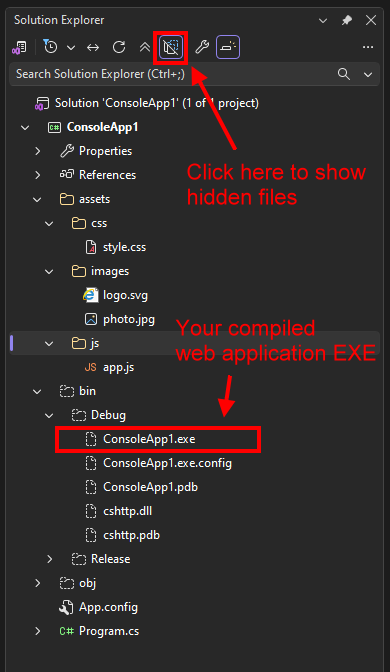
Because MyWeb.exe runs inside D:\MyWebApp\bin\Debug\, it looks for all of its resources (CSS, JavaScript, and images) right next to itself inside that exact bin\Debug\ folder!
That means for your web server to find your static files, they must exist inside bin\Debug\assets\:
D:\MyWebApp\                                  <-- Root source code folder
D:\MyWebApp\bin\Debug\MyWeb.exe               <-- The compiled EXE output folder
D:\MyWebApp\bin\Debug\assets\style.css        <-- Static files must be copied here!
D:\MyWebApp\bin\Debug\assets\logo.svg
D:\MyWebApp\bin\Debug\assets\app.js
(Or if you organize your assets into subfolders, they must be copied to:)
D:\MyWebApp\bin\Debug\assets\css\*.css
D:\MyWebApp\bin\Debug\assets\js\*.js
D:\MyWebApp\bin\Debug\assets\images\*.jpg
The Problem with Copying Files Manually
By default, Visual Studio only outputs compiled .exe and .dll files into bin\Debug\—it leaves your assets folder behind in D:\MyWebApp\assets\.
You could open Windows File Explorer and manually copy-and-paste your assets folder from D:\MyWebApp\assets\ into D:\MyWebApp\bin\Debug\assets\.
However, copying manually creates an annoying problem:
Every single time you edit a
.cssor.jsfile in Visual Studio, you would have to manually copy-and-paste it intobin\Debug\assets\again to see your changes!
Thankfully, Visual Studio provides built-in "Auto-Copy" features so your files are copied into bin\Debug\assets\ automatically every time you press Start!
Let's look at the two ways to enable Auto-Copy: Way 1 (Easy — File by File) and Way 2 (Advanced & Recommended — Wildcard Folder Rule).
Way 1 (Easy): Mark Individual Files to "Copy if newer"
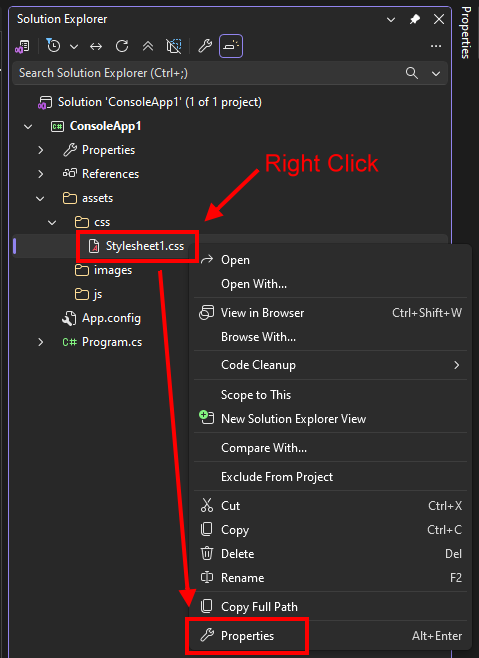
- In Solution Explorer, right-click your file inside
assets(for example,style.css) and select Properties (or pressAlt + Enter):
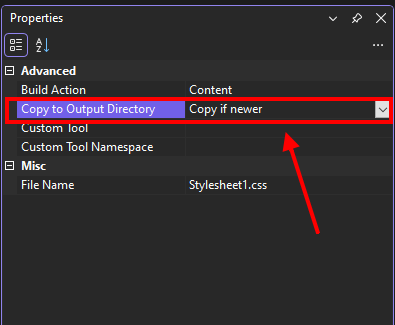
- In the Properties window, find Copy to Output Directory and change it from
Do not copytoCopy if newer:
- Repeat this for
logo.svgandapp.js.
Why choose
Copy if newer? Every time you press Start, Visual Studio checks if you editedstyle.css. If you changed it (or if it doesn't exist inbinyet), Visual Studio automatically copies the latest version intobin\Debug\assets\style.css!
Way 2 (Advanced & Recommended): Wildcard Auto-Copy in .csproj
Marking Copy if newer one file at a time is easy when you only have 3 files. But what if you add 20 images and 5 scripts to assets/ later? It is very easy to forget to set Copy if newer on every new file!
Instead, we can add one wildcard rule to our project file (.csproj) so that every file placed inside assets/ (including any subfolders like assets/css/, assets/js/, and assets/images/) is copied to bin\Debug\assets\ automatically forever:
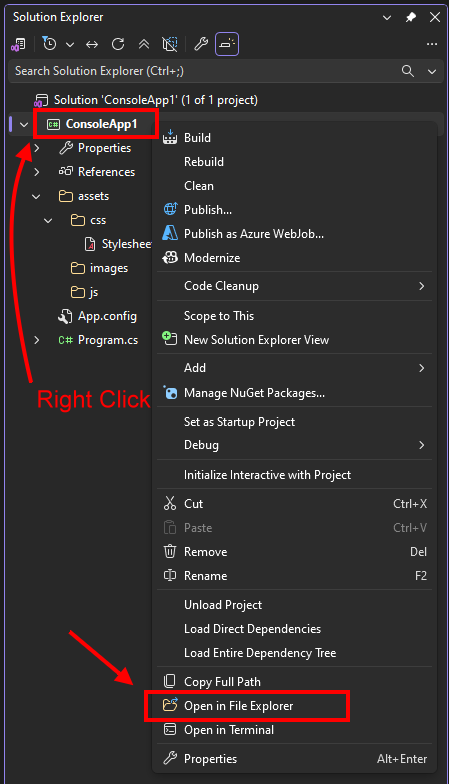
- In Solution Explorer, right-click your project (
ConsoleApp1) and select Open Folder in File Explorer:
- In File Explorer, find
ConsoleApp1.csprojand open it with a text editor (such as Notepad, VS Code, or directly in Visual Studio):
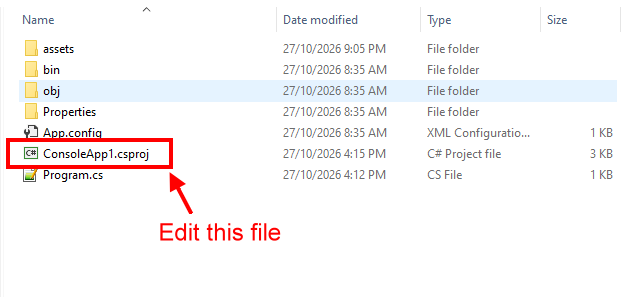
- Add this
<ItemGroup>block anywhere inside<Project> ... </Project>, right before the closing</Project>tag:
  <ItemGroup>
    <Content Include="assets\**\*">
      <CopyToOutputDirectory>PreserveNewest</CopyToOutputDirectory>
    </Content>
  </ItemGroup>
Look at what Include="assets\**\*" and PreserveNewest mean:
assets\**\*: Match every file (*) insideassets\and any subfolder inside it (**).PreserveNewest: The internal setting name for "Copy if newer".
From now on, any file you drop into your assets folder will automatically be copied into bin\Debug\assets\ whenever you build!
4. Serving /assets/ Files with Response.TransmitFile()
Now that our assets folder is automatically copied into bin\Debug\assets\, how do we send those files to the browser when it requests /assets/style.css, /assets/logo.svg, or /assets/app.js?
Instead of writing a separate case in our switch statement for every single file, we can handle the entire /assets/ folder with one clean if block right before our switch (path) inside OnRequest():
            if (path.StartsWith("/assets/"))
            {
                string filePath = WebApp.MapPath(path);
                if (!Response.TransmitFile(filePath))
                {
                    Response.StatusCode = 404;
                }
                return;
            }
Let's trace how these 8 lines work step by step:
if (path.StartsWith("/assets/")):Checks whether the requested URL begins with
"/assets/"(for example,"/assets/style.css"or"/assets/logo.svg").- Because we only allow paths starting with
"/assets/", a visitor can only request files inside theassetsfolder—they can never download files outside ofassets!
- Because we only allow paths starting with
string filePath = WebApp.MapPath(path);:In Day 8, we used
WebApp.MapPath("~/guestbook.txt")to turn a web path into a full hard-drive path inside ourbin\Debug\folder.WebApp.MapPath(path)also works directly with URL paths starting with"/"!- For example, if
pathis"/assets/style.css",WebApp.MapPath(path)returns"C:\...\bin\Debug\assets\style.css".
if (!Response.TransmitFile(filePath)):Response.TransmitFile(filePath)is a built-in cshttp method that sends a file from disk directly to the browser. It does all the heavy lifting automatically:- If the file exists,
Response.TransmitFile(filePath)automatically detects the file extension (.css,.svg,.js,.png,.jpg, etc.), sets the proper content type header for the browser, streams the file, and returnstrue. - If the file does not exist on disk (for example, if someone requests
/assets/missing.png),Response.TransmitFile(filePath)returnsfalse, and ourif (!Response.TransmitFile(filePath))block setsResponse.StatusCode = 404;.
- If the file exists,
return;:Once the static file (or
404status) has been handled,return;exitsOnRequest()immediately so it doesn't fall through to the HTML pageswitchbelow.
5. Connecting /assets/ inside RenderPage()
Now that our server can serve any file from /assets/, let's update RenderPage() so our HTML page loads /assets/style.css, /assets/logo.svg, and /assets/app.js:
<!DOCTYPE html>at the very top of the HTML: Tells the browser to follow modern HTML and CSS standards.<link rel='stylesheet' href='/assets/style.css' />inside<head>: Tells the browser to download/assets/style.cssand apply its styles to the page.<img src='/assets/logo.svg' alt='Logo' width='40' height='40' />inside<nav>: Tells the browser to download/assets/logo.svgand display it in the navigation bar.<script src='/assets/app.js'></script>at the bottom of<body>: Tells the browser to download and run/assets/app.js.
Here is the updated RenderPage() method:
        static void RenderPage(string title, string bodyContent)
        {
            string html = $@"<!DOCTYPE html>
<html>
    <head>
        <title>{title}</title>
        <link rel='stylesheet' href='/assets/style.css' />
    </head>
    <body>
        <nav>
            <img src='/assets/logo.svg' alt='Logo' width='40' height='40' />
            <a href='/'>Home</a>
        </nav>
        <hr />

        {bodyContent}

        <hr />
        <footer>
            <small>Server Time: {DateTime.Now:yyyy-MM-dd HH:mm:ss}</small>
        </footer>

        <script src='/assets/app.js'></script>
    </body>
</html>";

            Response.Write(html);
        }
6. Watching "One Page = Many Requests" in the Console
When you open http://localhost:8080/ in your browser, your browser doesn't just make 1 request anymore!
- First, the browser requests
/and receives our HTML page. - While reading the HTML, the browser discovers
<link href='/assets/style.css'>,<img src='/assets/logo.svg'>, and<script src='/assets/app.js'>. - The browser automatically makes three additional requests back to our server to fetch those three files!
To watch this happen live in our console window, let's add Console.WriteLine("Request: " + path); at the top of OnRequest().
7. Complete Program.cs for Day 9
Here is the complete Program.cs for Day 9:
using System;
using cshttp;

namespace ConsoleApp1
{
    internal class Program
    {
        static void Main(string[] args)
        {
            WebApp.Run(8080, OnRequest);
        }

        static void OnRequest()
        {
            string path = Request.Path.ToLower();

            // NEW IN DAY 9: Print every request so you can see how many requests one page makes!
            Console.WriteLine("Request: " + path);

            // NEW IN DAY 9: Serve any static file inside the /assets/ folder
            if (path.StartsWith("/assets/"))
            {
                string filePath = WebApp.MapPath(path);
                if (!Response.TransmitFile(filePath))
                {
                    Response.StatusCode = 404;
                }
                return;
            }

            switch (path)
            {
                case "/":
                case "/home":
                    HandleHome();
                    break;
                default:
                    HandleNotFound();
                    break;
            }
        }

        static void RenderPage(string title, string bodyContent)
        {
            // NEW IN DAY 9: Load style.css, logo.svg, and app.js from /assets/
            string html = $@"<!DOCTYPE html>
<html>
    <head>
        <title>{title}</title>
        <link rel='stylesheet' href='/assets/style.css' />
    </head>
    <body>
        <nav>
            <img src='/assets/logo.svg' alt='Logo' width='40' height='40' />
            <a href='/'>Home</a>
        </nav>
        <hr />

        {bodyContent}

        <hr />
        <footer>
            <small>Server Time: {DateTime.Now:yyyy-MM-dd HH:mm:ss}</small>
        </footer>

        <script src='/assets/app.js'></script>
    </body>
</html>";

            Response.Write(html);
        }

        static void HandleHome()
        {
            string content = @"
                <h1>Welcome Home</h1>
                <p>Our CSS, SVG logo, and JavaScript are now served as real files from the <b>/assets/</b> folder!</p>
                <p>Look at your server console: how many requests did this one page make?</p>";

            RenderPage("Home", content);
        }

        static void HandleNotFound()
        {
            Response.StatusCode = 404;
            string content = @"
                <h1>404 Not Found</h1>
                <p>The page that you are looking for does not exist.</p>";

            RenderPage("404 Not Found", content);
        }
    }
}
8. Verify the bin Folder and Test in Your Browser
- Build and run your application (Start in Visual Studio or
dotnet run). - Check your
binfolder first! Open Windows File Explorer and navigate to your project'sbin\Debug\folder (orbin\Debug\net8.0\). Verify that a realassetsfolder was copied right next to your.exe, containingstyle.css,logo.svg, andapp.js! - Open
http://localhost:8080/in your browser:- Your page is now centered with a clean Arial font, blue headings (
style.css), and a round C# logo (logo.svg) in the navigation bar! - Press
F12in your browser and click the Console tab: you will seeHello from /assets/app.js!printed by your external JavaScript file!
- Your page is now centered with a clean Arial font, blue headings (
- Look at your C# server console window. For that single page visit, you will see four separate requests printed:
Request: / Request: /assets/style.css Request: /assets/logo.svg Request: /assets/app.js - Try dropping any
.pngor.jpgimage (for example,photo.png) into your project'sassetsfolder, press Start, and visithttp://localhost:8080/assets/photo.pngin your browser—it works immediately without adding a single extra line of C# code!
In Day 10, we will learn how a web server can remember an individual visitor across requests using Cookies!