cshttp Beginner Tutorial - Day 0: Getting Started with cshttp
Content ( Main Menu ):
- Day 0: Getting Started with cshttp
- Day 1: Multi-Page Routing (Home, About, Contact & 404)
- Day 2: Clean Templates & Dynamic Content (Shared Layout)
- Day 3: Accepting User Input (URL Query String & GET Forms)
- Day 4: Handling Forms & Submissions (HTTP POST)
- Day 5: Dynamic Data & Memory State (Interactive Guestbook)
Day 0: Getting Started with cshttp
Welcome! In this tutorial series, you will learn how to build real, interactive web applications using C#.
We will use cshttp — a high-performance, self-sustained, standalone micro web framework for C#. It lets you run web servers and create web apps with almost zero boilerplate or configuration.
1. Prerequisites (Tools You Need)
Before we start, you only need two free tools installed on your computer:
- .NET SDK (.NET 8 or newer)
- Download & install from: https://dotnet.microsoft.com/download
- This provides the compiler and runtime to run C# programs.
- A Code Editor / IDE (Choose ONE):
- Visual Studio (Community Edition): The complete, all-in-one C# environment. During installation, simply select the workload ".NET desktop development" or "ASP.NET and web development".
- OR Visual Studio Code: A lightweight code editor. If you choose this, also install the official "C# Dev Kit" extension from the VS Code Extensions tab (
Ctrl + Shift + X).Download: https://code.visualstudio.com/
2. What is in the Starter Pack?
To save you from configuring complex project settings, we have prepared a ready-to-run Starter Pack.
When you unzip the folder, you will see:
cshttp-starter/
├── lib/
│   └── cshttp.server.dll     <-- The pre-compiled cshttp micro web framework
├── StarterApp.csproj         <-- The C# project file (pre-configured)
└── Program.cs <-- Your application codelib/cshttp.server.dll: The complete, standalone web framework. Everything needed to run your server is bundled inside.Program.cs: The file where you write your C# code.
3. Your Very First Web Server
Open the cshttp-starter folder in your IDE (Visual Studio or Visual Studio Code), and open Program.cs. It contains the simplest web application possible:
using cshttp;

static class Program
{
    static void Main()
    {
        // Listening Port: 8080
        // http://localhost:8080/
        WebApp.Run(8080, OnRequest);
    }

    static void OnRequest()
    {
        string html = @"
    <html>
        <head>
            <title>Hello World</title>
        </head>
        <body>
            <h1>Welcome cshttp!</h1>
            <p>Hello World!</p>
        </body>
    </html>
    ";
        Response.Write(html);
    }
}
4. How to Run It
- Open a terminal / command prompt in the
cshttp-starterfolder (or use the built-in terminal in your editor). - Run the command:
dotnet run(Or simply press the Start / Play button in Visual Studio / VS Code).
- Open your web browser and navigate to:
http://localhost:8080/
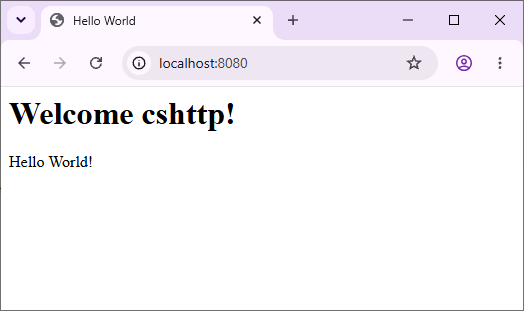
You will immediately see your page: "Welcome cshttp! Hello World!"
To stop the server at any time, press Ctrl + C in your terminal or click the stop debugging button in your editor.
5. How Does It Work?
Let's break down the only two things happening here:
WebApp.Run(8080, OnRequest);- Starts your web server listening on port
8080. - Tells the framework: "Whenever a browser visits our website, execute the
OnRequestmethod."
- Starts your web server listening on port
Response.Write(html);- Sends your HTML text back to the visitor's browser.
That's all it takes! No complicated setups, no background services to install.
In Day 1, we will learn how to add multiple pages and navigate between them using simple routing.