

Dynu IP Updater – A Free Dynamic DNS Client for Windows
If you’re running a home server, remote desktop, security cameras, or any service that needs to be accessible from the internet, you’ve probably encountered the challenge of dynamic IP addresses. Most residential internet connections don’t come with a static IP, which means your IP address can change at any time – breaking your remote access.
Dynamic DNS (DDNS) solves this problem by automatically updating a hostname to point to your current IP address. Dynu.com is one of the popular free DDNS providers, and today I’m releasing a Windows desktop application to make updating your Dynu DNS records effortless.
Introducing Dynu IP Updater
Dynu IP Updater is a lightweight Windows application that automatically detects your public IP address and updates your Dynu.com DNS records. Set it up once, and forget about it.
Features
- Automatic IP Updates – Detects your public IP and updates Dynu DNS records on a schedule
- Multiple Update Modes – Update all hostnames in your account, a specific group, or individual hostnames
- Encrypted Credential Storage – Your passwords are stored securely using AES-256 encryption
- Windows Scheduled Task – Runs silently in the background at your preferred interval
- IPv4 & IPv6 Support – Update both A and AAAA records
- Reliable IP Detection – Uses multiple fallback services to ensure accurate IP detection
- Comprehensive Logging – Track all updates with automatic log rotation
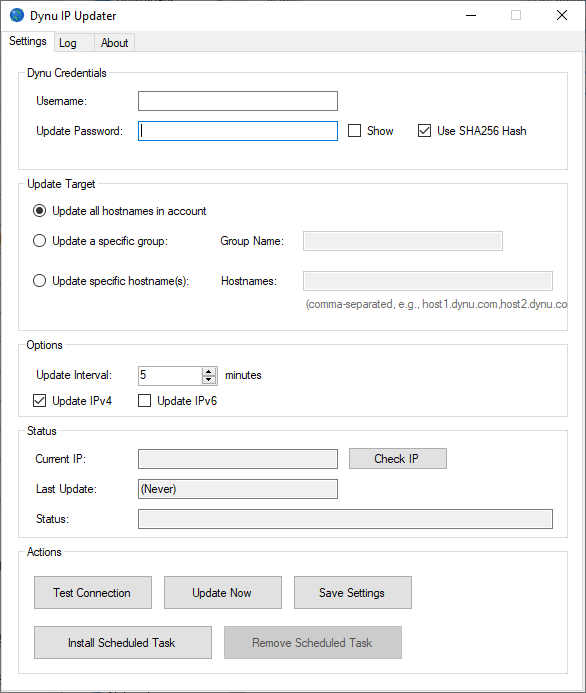
Screenshots
Download
GitHub Repository: https://github.com/adriancs2/DynuIpUpdater
Download Latest Release: https://github.com/adriancs2/DynuIpUpdater/releases
How to Use
Step 1: Get Your Dynu Credentials
- Log in to your Dynu.com account
- Go to Control Panel → DDNS Services
- Note your username and set an IP Update Password (this is different from your login password)
Step 2: Configure the Application
- Download and extract Dynu IP Updater
- Run
DynuIpUpdater.exe - Enter your Dynu username and IP Update Password
- Select your update target:
- All hostnames – Updates every DNS record in your account
- Specific group – Updates all hostnames in a group
- Specific hostname(s) – Updates only the hostnames you specify
- Set your preferred update interval (default: 5 minutes)
- Click Save Settings
Step 3: Set Up Automatic Updates
Click Install Scheduled Task to create a Windows Scheduled Task that runs the updater in the background. The application will prompt for administrator privileges since creating scheduled tasks requires elevation.
That’s it! Your DNS records will now be updated automatically whenever your IP address changes.
Command Line Usage
The application also supports command-line operation for advanced users:
DynuIpUpdater.exe              # Launch GUI
DynuIpUpdater.exe --silent     # Silent update (used by scheduled task)
DynuIpUpdater.exe --help       # Show help
Technical Details
- Platform: Windows 7 or later
- Framework: .NET Framework 4.8
- Encryption: AES-256 for credential storage
- IP Detection Services: ipify.org, icanhazip.com, my-ip.io (with fallback)
Why Another DDNS Client?
There are many DDNS clients available, but I wanted something that:
- Just works – Simple setup, no complicated configuration
- Secure – Credentials encrypted, not stored in plain text
- Lightweight – No unnecessary features or bloat
- Open source – Transparent, auditable code
Open Source
This project is released under the Unlicense (Public Domain). You’re free to use, modify, and distribute it however you like.
GitHub: https://github.com/adriancs2/DynuIpUpdater
Contributions, bug reports, and feature requests are welcome!
Disclaimer
This project is not affiliated with, endorsed by, or sponsored by Dynu Systems Inc. Dynu is a trademark of Dynu Systems Inc.
Developed in collaboration with Claude Opus 4.5
Photo by Robin Wersich on Unsplash